How to Extract Text from a Scanned PDF or Image
Use OCR to recover editable text from a scan, then clean and verify the result responsibly.
On this page
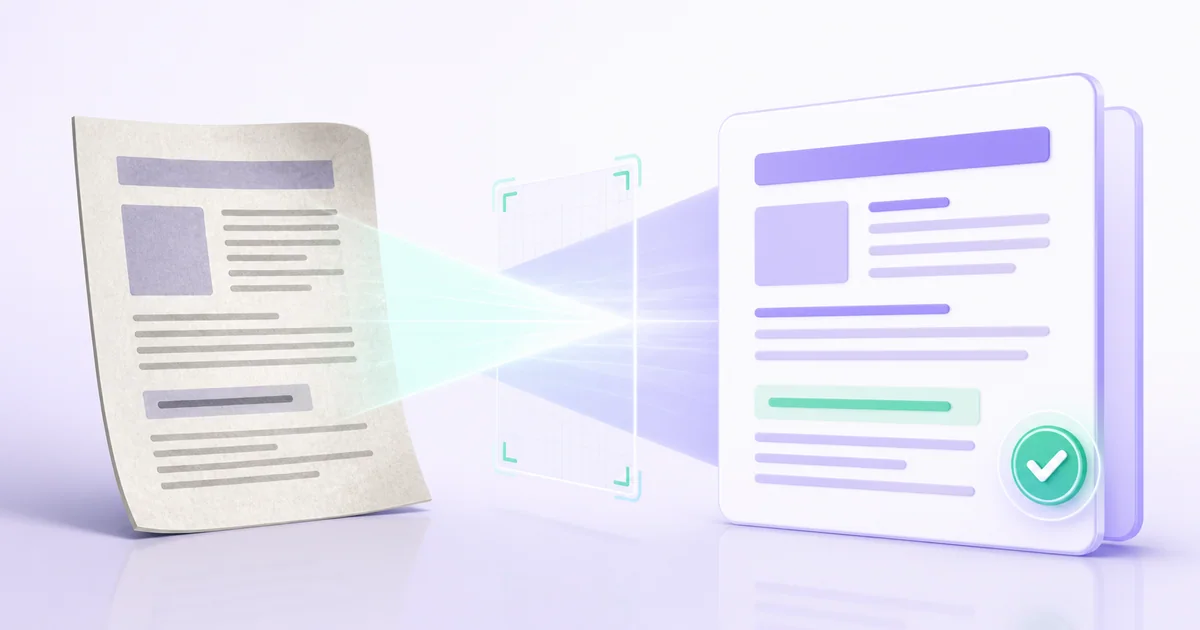
Text extraction saves retyping, but OCR output is a draft rather than an authoritative transcript. Accuracy depends on image quality, language, layout, and the characters used in the source.
This guide explains a careful workflow using OCR Image. Work with a copy when the source matters, and always inspect the output before submitting, sharing, or deleting anything.
Before you start
Use the final source file, close it in other applications, and confirm that you are authorised to process its contents. A stable connection helps with uploads, but the quality of the result still depends on the source. Password-protected or severely damaged files may need attention before processing.
Step-by-step workflow
- Crop away unrelated backgrounds and rotate the scan upright.
- Choose OCR PDF for documents or OCR Image for a single image.
- Select the correct language.
- Copy or download the recognised text.
- Proofread it beside the original before reuse.
Quality checks
Do not judge a document only from a successful download message. Open the result in a PDF reader and check these points:
- Names, dates, totals, and reference numbers match.
- Columns were read in the correct order.
- Line breaks do not change the meaning.
Practical notes
- Never discard the original after extraction.
- For sensitive information, store the corrected text with the same care as the scan.
Privacy and file handling
Only upload documents you are permitted to process. XPPDF uses short-lived processing storage; signed-in users can keep eligible workspace files for up to three days, while guest jobs have a shorter retention period. Download important results promptly and remove files you no longer need from your workspace.
Frequently asked questions
Does the process change my original file?
The tool creates a new output. Your local original remains unchanged unless you deliberately replace it after downloading.
Should I check the output before using it?
Yes. Check page count, readability, order, and any critical names, totals, dates, or signatures. Automated processing cannot understand the business meaning of every document.
Can I continue with another PDF task?
Yes. After checking the result, use the workspace actions or visit all XPPDF tools to continue with a relevant task. Choose only the operations you actually need so that quality is not reduced by unnecessary repeated processing.
Final checklist
- Keep the original until the result is accepted.
- Open the downloaded output rather than relying on its filename.
- Confirm the file meets the recipient's format and size rules.
- Protect confidential documents after download.
For this task, open OCR Image and follow the steps above.
Keep learning
Related guides
Guide
How to Edit a PDF Online and Review the Export
Make focused PDF edits, export a new copy, and verify that annotations and page content appear correctly.
Read guideGuide
How to Convert Excel to PDF and Keep the Sheet Readable
Prepare spreadsheet print settings before converting Excel worksheets to a readable PDF.
Read guideGuide
How to Convert JPG, PNG or WebP Images to PDF
Turn one or more JPG, PNG, or WebP images into a portable PDF with a predictable page order.
Read guide